Buying a machine embroidery design from Royal Present Embroidery takes you from choosing a design to downloading a ZIP archive and loading the correct embroidery file into your machine. This guide explains each step, including account access, promo codes and common download problems.
Before you buy: these are digital machine embroidery files. You will not receive a physical embroidered item. Check your machine's supported file format and maximum embroidery area before ordering.
Click any screenshot to open the larger image.
The screenshots show an example purchase. Prices, payment options and page layout may change; always check the details displayed for your own order.
1. Find and open a design
Visit our online store. Browse the categories or use Search to look for a subject, design name or SKU. Open the product page to see its description, photographs and technical details.
Read the listing carefully, especially for sets, appliqué, lace and in-the-hoop projects. Check what the purchase includes and whether the project needs additional materials or assembly.
2. Check the sizes and file formats
- Dimensions: compare the design's width and height in millimetres or inches with your machine's usable embroidery area. A hoop's name alone does not confirm that a design will fit.
- File formats: find the Formats line and check that your machine supports one of the listed formats. Consult your machine's manual if you are unsure.
- Project details: review the stitch count, image gallery and any design-specific instructions or resizing restrictions.
You receive the sizes and formats listed in the product description. For the standard downloadable designs shown here, you do not choose an embroidery format at checkout. You select the appropriate file after downloading and extracting the ZIP archive.
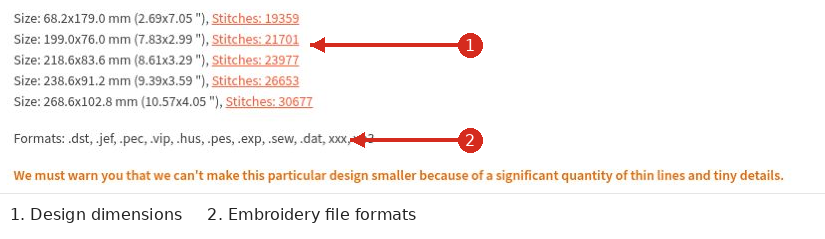
Check dimensions and supported file formats before adding the design to your cart.
3. Add the design to your cart
Click Add to Cart on the product page. Continue browsing if you want additional designs. When you are ready, open the cart icon at the top of the website or choose Go to Checkout if that option appears after adding an item.
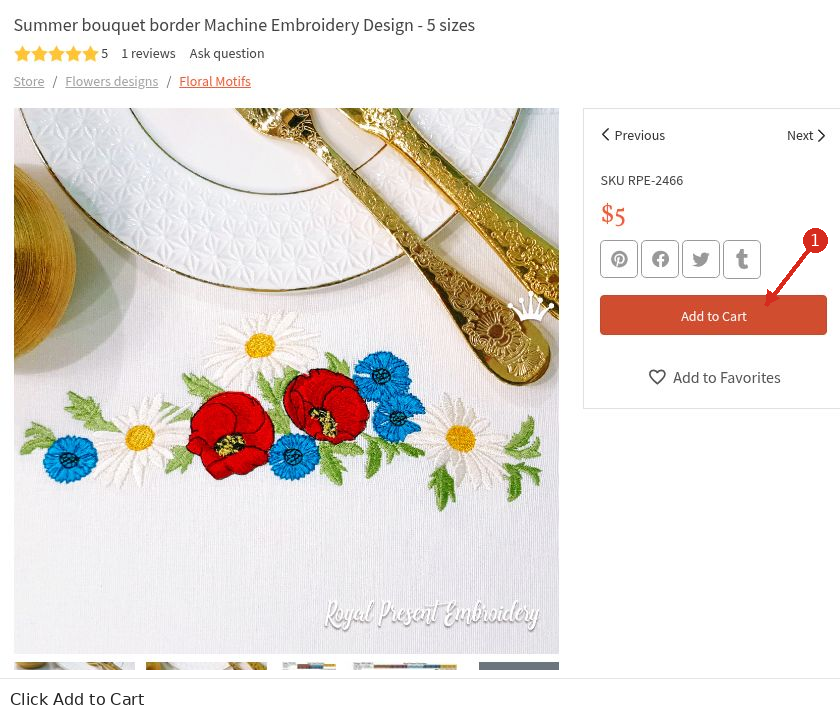
Use Add to Cart on the product page, then open your shopping cart.
4. Review the cart and apply a promo code
Check that the cart contains the designs you intended to buy. Expand the item list if necessary and remove unwanted items with the remove control beside them.
If you have a promo code, enter it in Enter a promo code and click Apply. Confirm that the discount is reflected in the total before proceeding. Entering a code without applying it does not confirm a discount.
Review the final amount displayed for your order. The price in our example screenshot is only for the illustrated product.
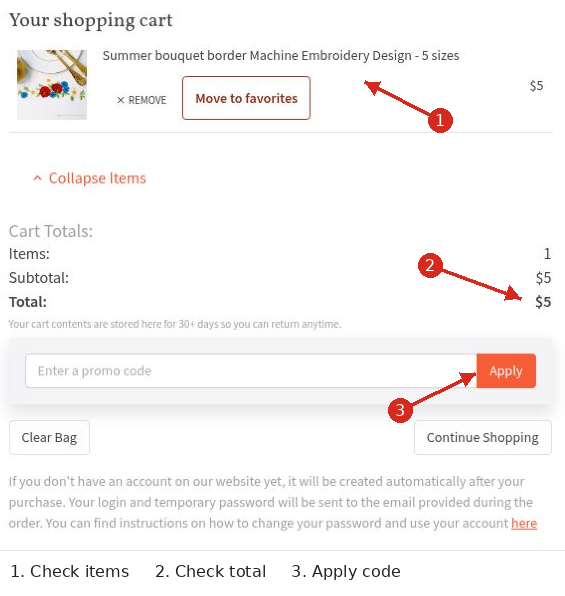
Review your items and total, then apply any valid promo code.
5. Enter your email or sign in
Your email address is essential: the store sends your order information and download links there. Check it carefully for typing errors and use an address you can access.
If you already have an account, use Sign In at checkout or Log In at the top of the website. Use the same email address associated with your existing purchases.
You do not need to register separately before your first purchase. As explained on the checkout page, an account is created automatically after purchase if you do not already have one, and account details are sent to the email address supplied with the order.
You can also use our email sign-in page: enter your email, click Get Sign-in Link, then follow the link in the email. Read the terms and privacy notice displayed on that page before continuing; this option also creates an account when needed.
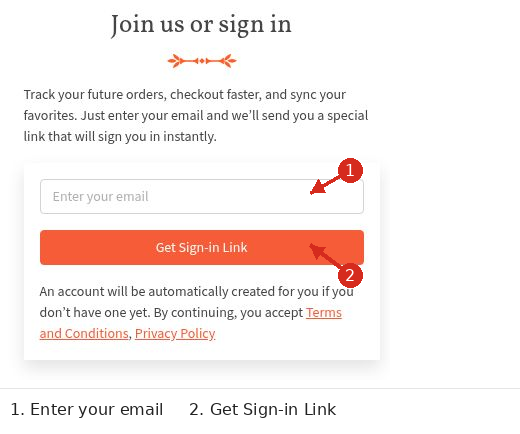
For access to existing purchases, use the email address entered with your order.
6. Complete checkout and payment
- Select one of the payment methods currently offered in your checkout. The illustrated page shows QuickPay, PayPal and Stripe.
- Confirm your email address or signed-in account. Add order comments only if needed. Complete the company VAT field only if it applies to your purchase.
- Read the Terms and conditions and select the agreement checkbox if you accept them.
- Choose whether you want news and exclusive offers. This subscription checkbox is separate from the terms agreement; review its setting before submitting.
- Check the total, click Checkout, and follow the payment provider's instructions. Complete any verification requested by your payment provider.
Allow the payment process to finish and follow the return link to the store when provided. An order is not paid simply because you clicked Checkout. If payment fails or its status is unclear, check your order and payment confirmation before trying again.
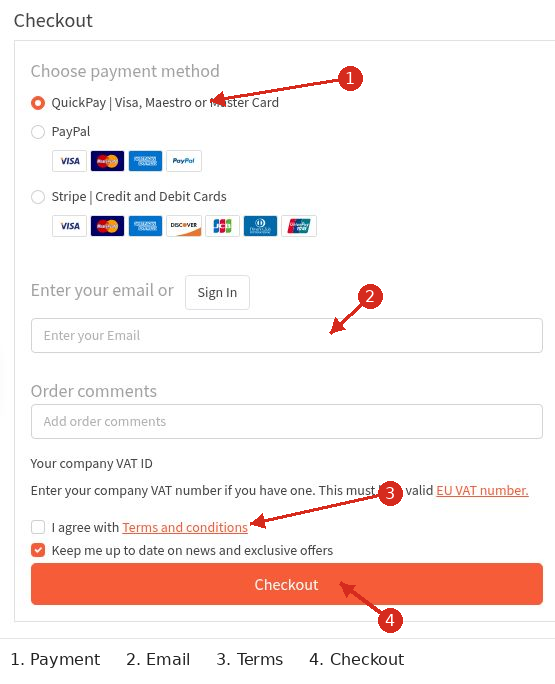
Check all required details before continuing to the payment provider.
7. Download your purchased designs
After your payment has been processed, a confirmation email contains a link to download your files in ZIP format. Downloads are also available through your account.
- Open the order email and follow its download link, or sign in using the email address associated with the purchase and open the relevant order in your account.
- Download the ZIP archive for each purchased design. If you bought several designs, make sure you have downloaded all the files you need.
- Save the archives in a clearly named folder on your computer. Keep the order confirmation and make a backup of your purchased files.
If an order displays a download limit or expiry notice, follow the information shown for that order. If a link no longer works, contact us with your order details.
8. Extract the ZIP archive
A ZIP archive is a package containing files. Extract it before selecting the embroidery file for your machine.
- Windows: right-click the downloaded ZIP, choose Extract All, select a destination and open the extracted folder.
- Mac: double-click the downloaded ZIP and open the folder that is created.
- Online: open our Unzip Online tool, choose the downloaded ZIP, and click Uncompress file. Follow the displayed options to download the extracted files. The tool accepts ZIP archives up to 60MB.
If you use a phone or tablet, save the ZIP in its file-management app and use that app's extraction function. You may still need a computer to transfer the design to your embroidery machine.
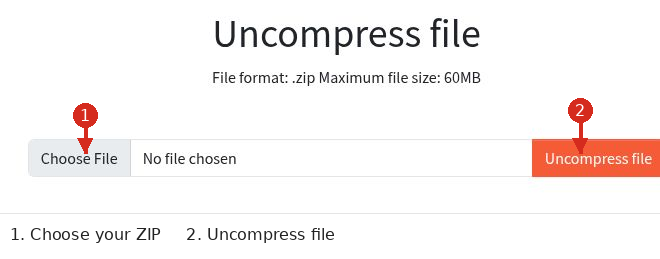
Select your downloaded ZIP archive, then click Uncompress file.
9. Choose the correct file and transfer it to your machine
Inside the extracted folder, choose the size that fits your embroidery area and the file extension your machine supports. For example, choose a PES file only if your machine supports PES. Do not change a filename extension to convert an unsupported format.
Review any included colour chart and project instructions. A JPG or PDF chart is reference material; it is not the stitch file your machine uses for embroidery.
Transfer the embroidery file using your machine's supported method, such as USB, cable or the manufacturer's software. Follow its instructions for folder structure and storage devices. Check the design size and orientation on the machine, prepare the fabric and stabilizer, and make a test stitch-out before embroidering your final item.
10. Recover account access when needed
If you cannot remember your password, you can use the email sign-in link option or open password recovery. On the recovery page, enter your account email and click Recovery. Check your inbox and spam folder, then follow the instructions in the email.
If you receive a temporary password, sign in and replace it with a strong, unique password using your account's password-change controls. Keep using the email associated with your purchases so that you access the correct account.
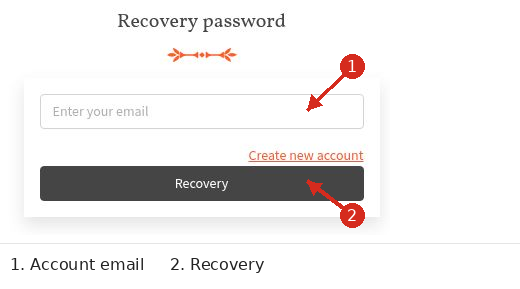
The Recovery form is for account access, not for purchasing or extracting files.
Common questions and problems
I paid but cannot find the download email
Check Spam, Junk and Promotions folders. Confirm which email address you entered at checkout and whether payment completed successfully. Sign in with that same address and check your orders. If you still cannot locate the files, contact support.
My order is missing from my account
Check that you signed in with the email used for the purchase. An order placed under another email may not appear in the account you are viewing. Send support the order number, purchase date and checkout email so we can investigate.
The ZIP archive will not open
Check that the download finished. Download a fresh copy, then extract it using your computer's ZIP tools or our online tool. If the online tool rejects the file, check its ZIP format and the 60MB limit. If the problem continues, tell support the exact error message.
My machine does not display the design
Make sure you extracted the ZIP, selected a supported embroidery format, and chose a design size that fits your machine's embroidery area. Check the machine's instructions for file transfer and USB compatibility. A preview picture cannot be used as a stitch file.
Can I sell items embroidered with these designs?
Check the current licence and store terms before commercial use. Permission to sell finished embroidered items is different from permission to share, sell or redistribute the digital design files.
How do I get help?
Use our Contact Us page. Include your order number if available, checkout email, purchase date, design name or SKU, payment method, and a description or screenshot of the problem. Do not send passwords or full payment-card details.
For more technical guidance, visit our FAQ and Embroidery Library.

Author: Ludmila Konovalova
My name is Ludmila Konovalova, and I lead Royal Present Embroidery. Embroidery for me is more than a profession; it is a legacy of my Ukrainian and Bulgarian heritage, where every woman in my family was a virtuoso in cross-stitch and smooth stitching. This art, passed down through generations, is part of my soul and a symbol of national pride.
Date: 23.09.2024

 Get Sign-In Link
 Login with Google
 Login with Facebook
 Login with Amazon
 Login with Paypal